How to Use Zapier Integration
Follow these simple steps to connect your monday.com account with Zapier and start automating your workflows.
Step 1: Install the App
First, install the Zapier Integration app on your monday.com board.

Step 2: Open the Zapier Integration View
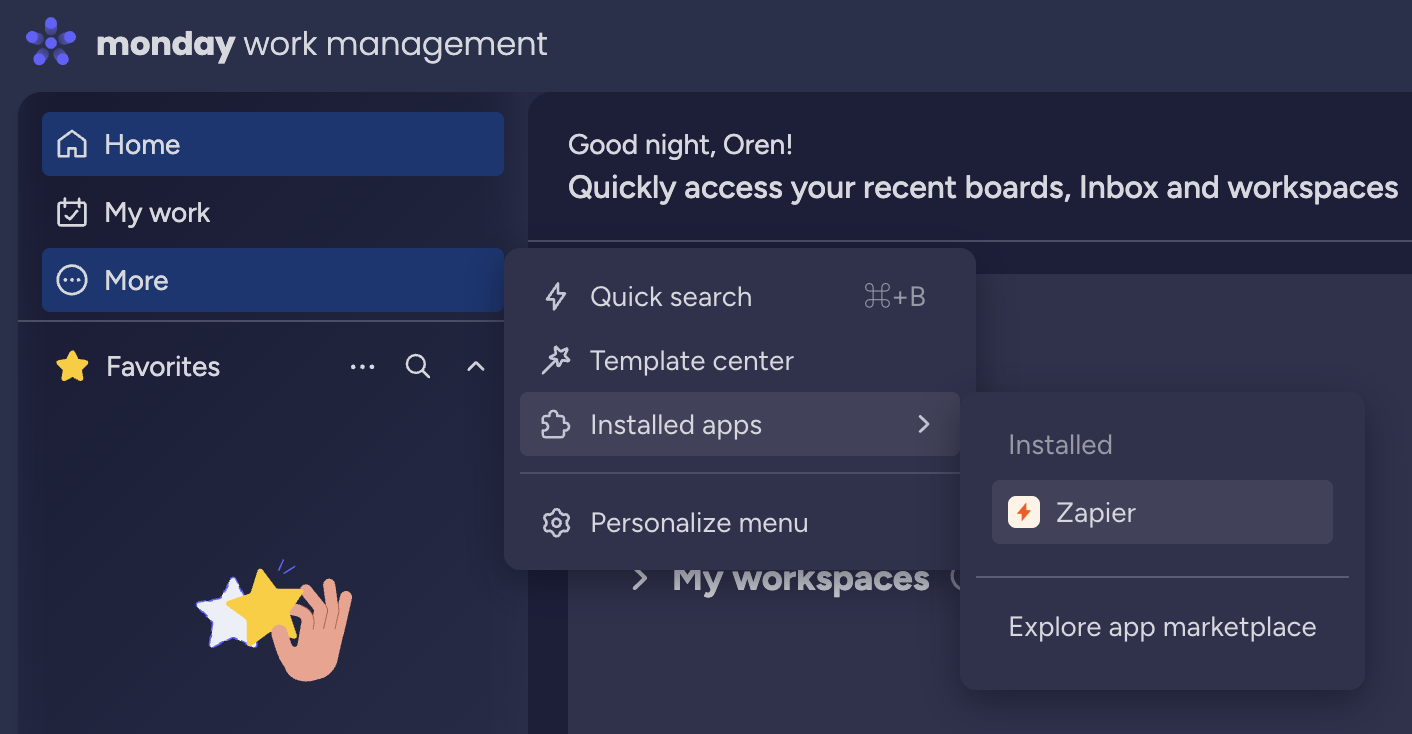
Navigate to the Zapier Integration view in your monday.com workspace by clicking More -> Installed Apps -> Zapier
Step 3: Copy Your Access Token
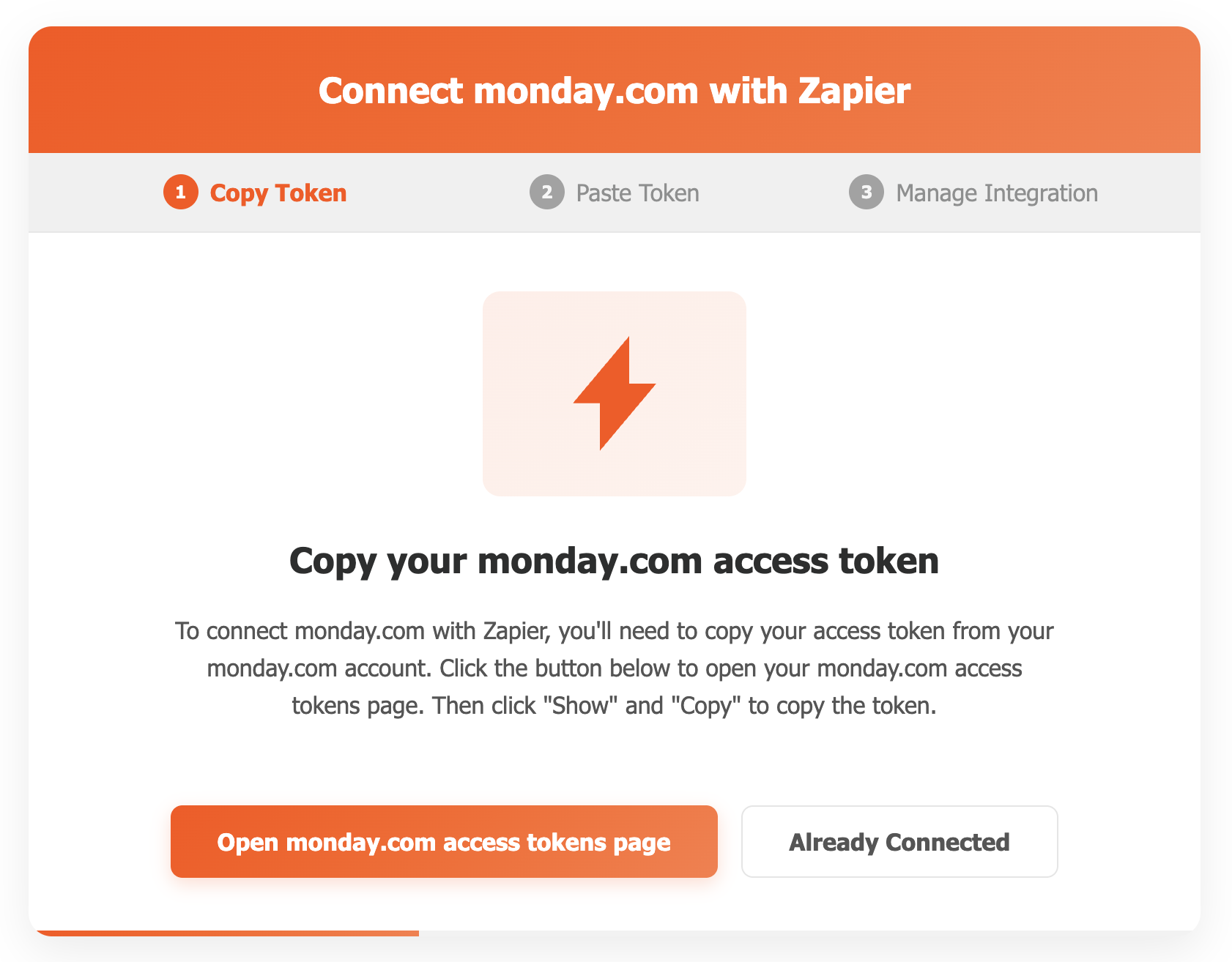
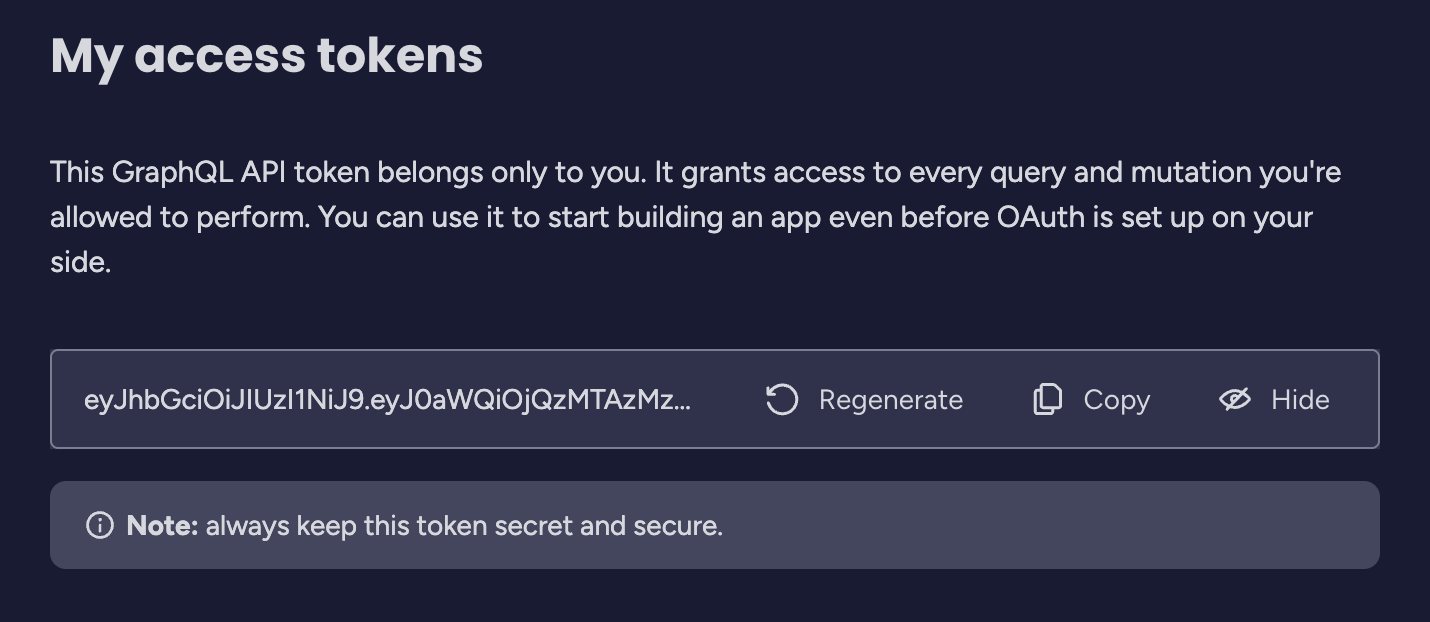
In the Zapier Integration view, click the button, and a popup will open where you'll find your monday.com access token. Click the Show button and then the Copy button to copy it to your clipboard.
Step 4: Create the monday.com Connection in Zapier
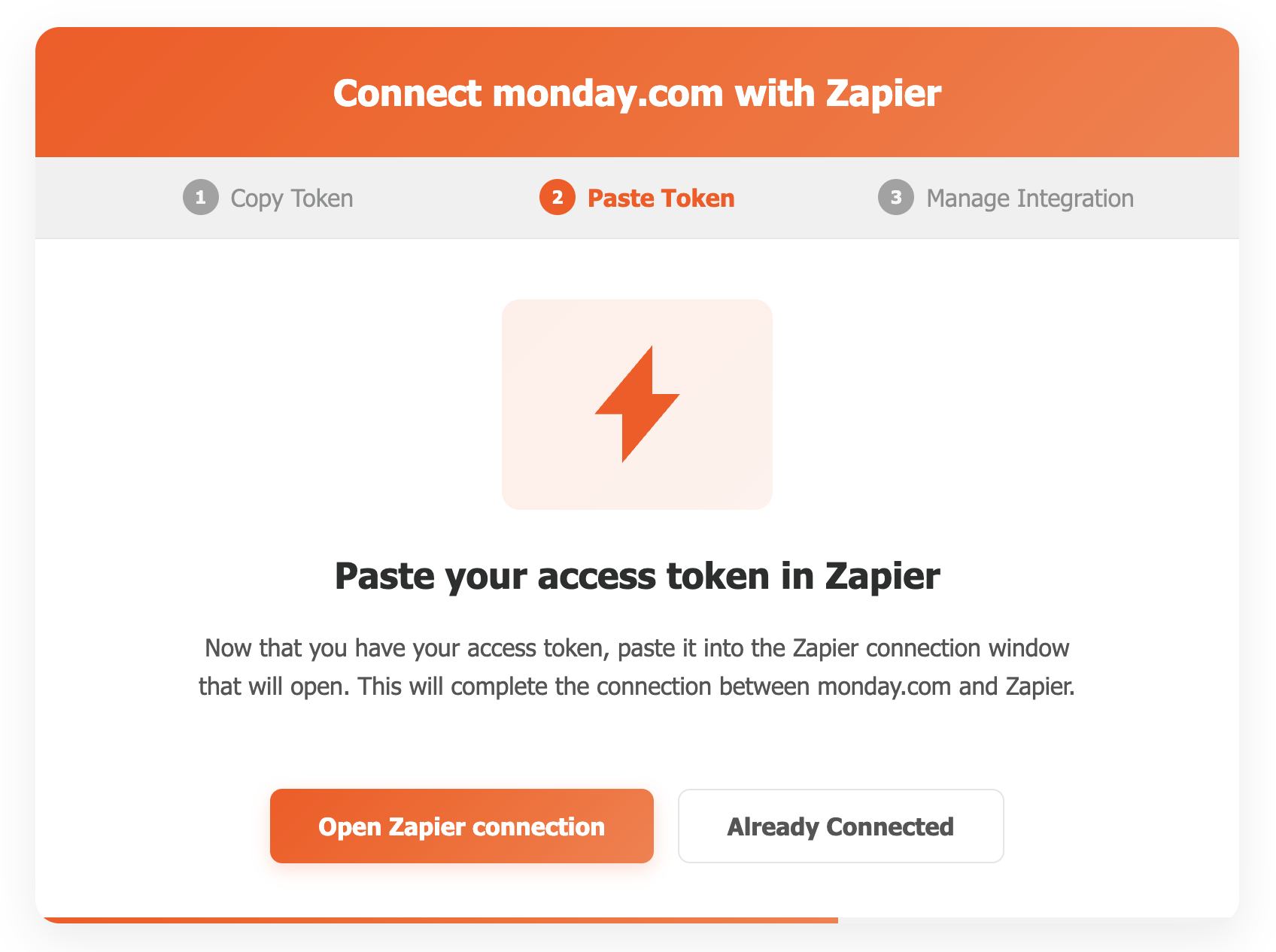
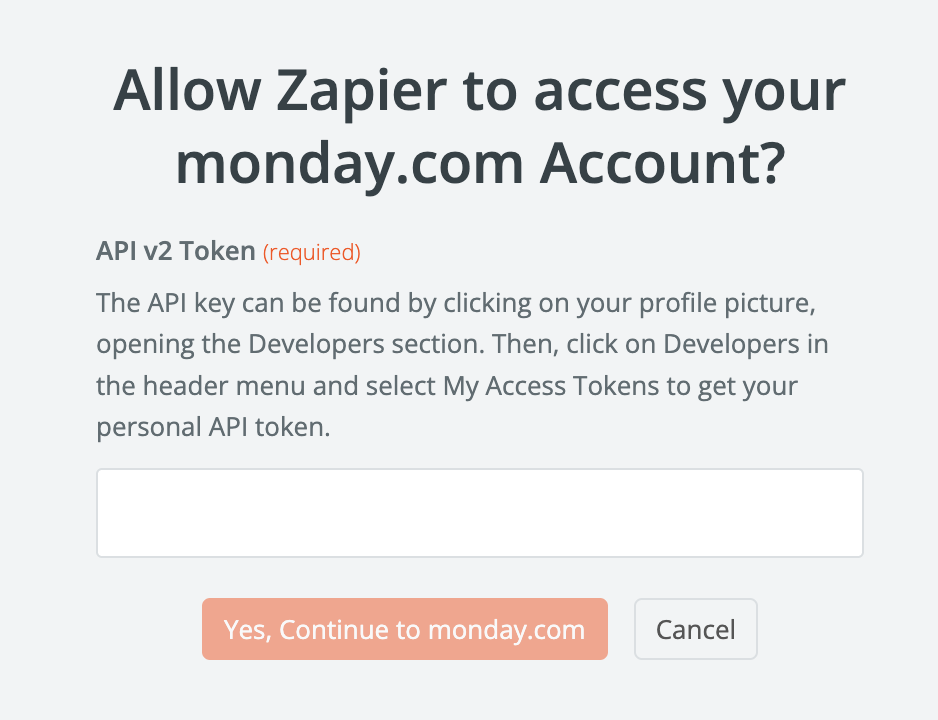
Go to Zapier and create a new Zap. When prompted to connect monday.com, paste your access token to establish the connection.
Step 5: Choose Apps to Connect
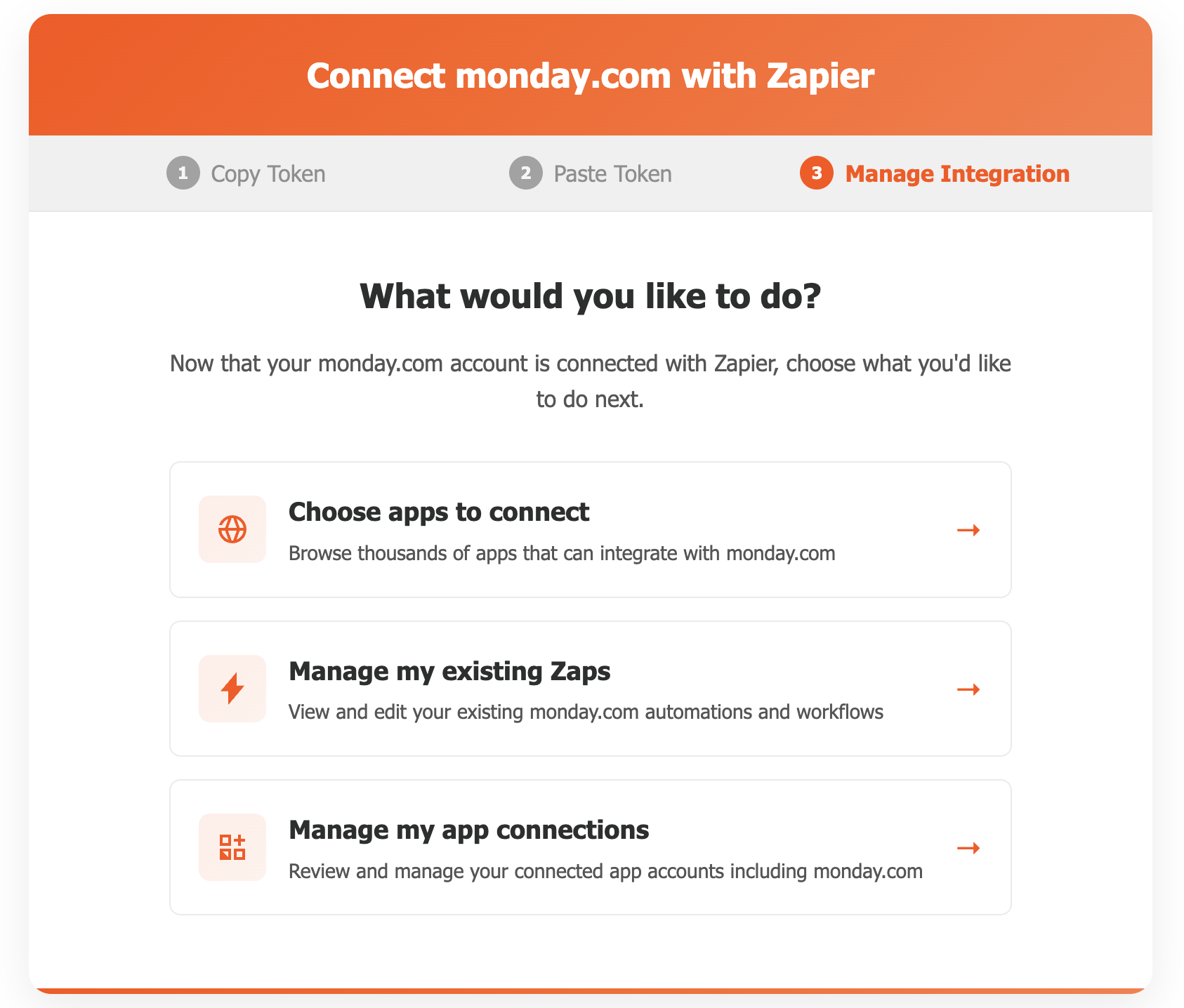
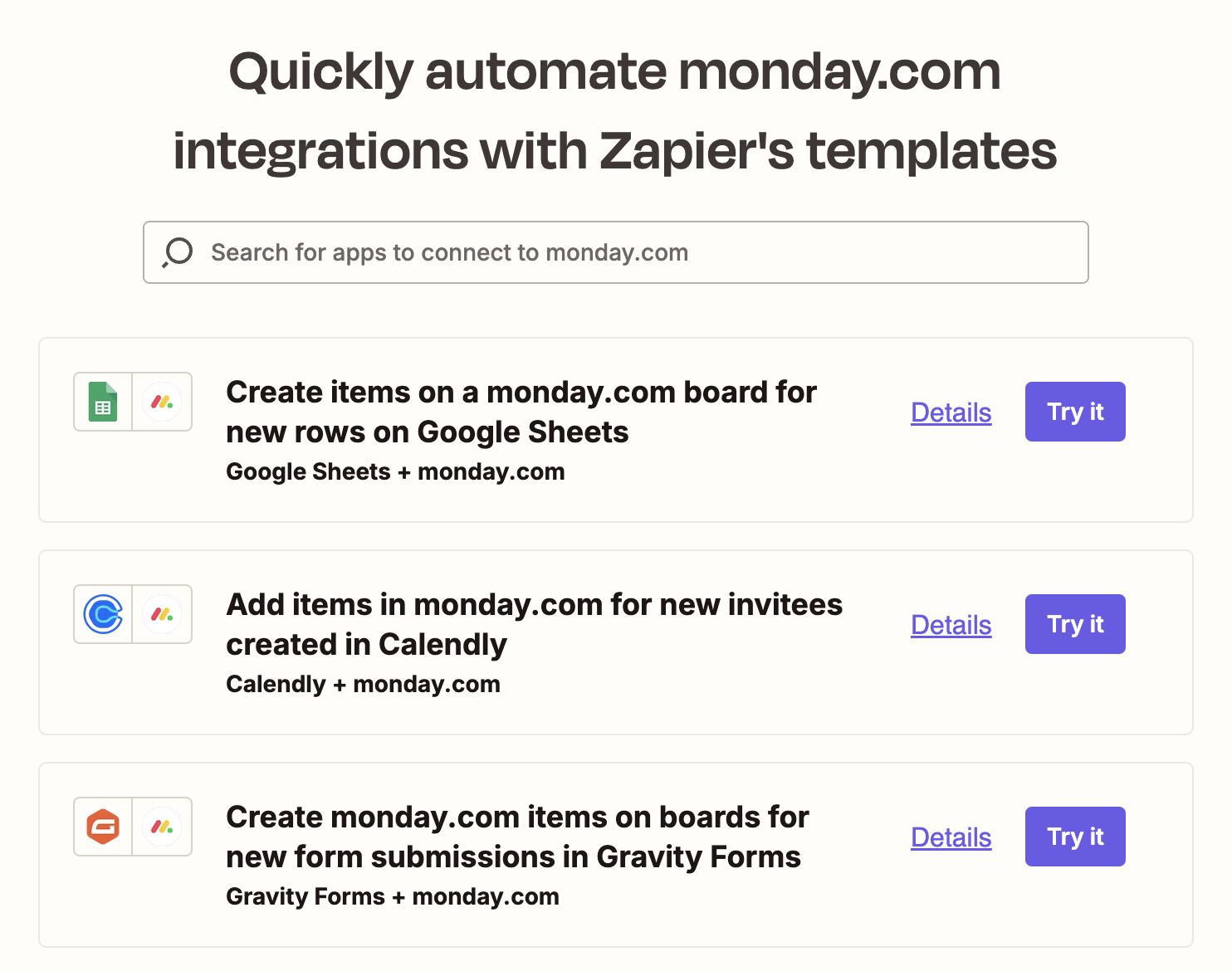
Select the apps you want to connect with monday.com and set up your automation workflows.
Ready to get started?
Get the App